I wanted to share a small project I’ve been working on that may be useful to the W9PVR community.
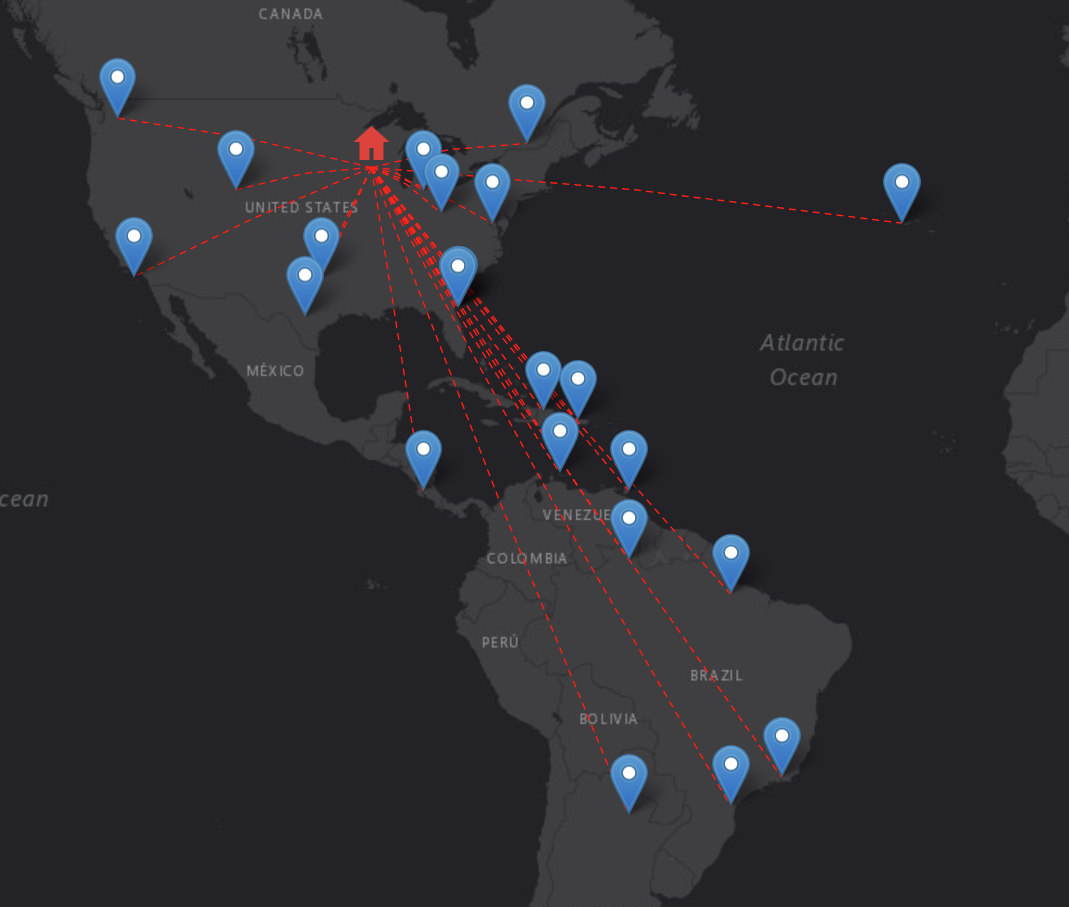
QSO Map is a lightweight, self-hosted web app that reads your ADIF (.adi/.adif) log files and plots QSOs on an interactive map in near real time. As new contacts are logged, they appear automatically in the browser.
Source code and additional documentation:
https://gitlab.com/jake-barbieur/qso-map
Important: QSO-Map currently only works with ADIF records that include a valid GRIDSQUARE field.
How to Use
QSO Map runs as a Docker container. Docker is easy to install and runs on Windows, MacOS, and Linux, meaning QSO Map can run on just about anything. If you don’t currently have Docker installed, you can find instructions for doing so here.
Once you have Docker installed and running, you can run QSO Map by running one of the following examples in a terminal. For the sake of these examples, it’s assumed your logs are at C:\logs. Replace that path in the examples with the actual directory of your log file(s).
docker run -p 5000:5000 -v C:\logs:/adif registry.gitlab.com/jake-barbieur/qso-map
What this command does
docker run– starts the application-p 5000:5000– makes the web app available on your computer at port 5000-v C:\logs:/adif– gives the container access to your log folderregistry.gitlab.com/jake-barbieur/qso-map– the actual QSO-Map application (this gets downloaded automatically when you run the command)
If you want to enable the QTH (home) icon and QSO lines, use the -e flag to set MY_GRID like so:
docker run -p 5000:5000 -e MY_GRID=EN43 -v C:\logs:/adif registry.gitlab.com/jake-barbieur/qso-map
If you’d like to enable the QTH icon, but no lines from there to the QSOs, use the -e flag to set QSO_LINES to false:
docker run -p 5000:5000 -e MY_GRID=EN43 -e QSO_LINES=false -v C:\logs:/adif registry.gitlab.com/jake-barbieur/qso-map
See the Gitlab project for full documentation on all configurable parameters.
Show me the QSOs!
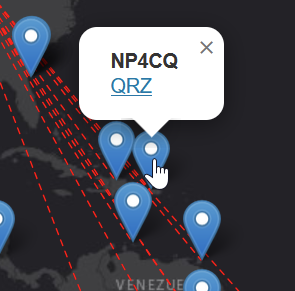
Once you’ve started QSO Map, open a browser to http://localhost:5000, and you should see your QSOs plotted on the map. You can click on a QSO to show the call sign and a link to that contact’s QRZ page.
Feel free to reach out with any questions – n9deltamiketango@gmail.com